Events
How do I enable and manage group event registrations?
Event registration becomes complex when administrative staff are tasked with signing up multiple participants on behalf of others or if member admins must go through the registration process repeatedly. Without the right tools, this can lead to wasted time, duplicate or bloated registrant lists, and avoidable errors.
Engagifii simplifies the process by empowering Administrative Assistants, also known as Member Organization Leads (MOLs) or Member Admins, to manage group registrations with ease. From selecting participants to editing records and choosing their sessions to responding to dietary questions, every step is streamlined and centralized. With the right permissions, your MOLs can register their group quickly and easily.
Manage Group Registrations Through Designated Administrative Assistants
When a designated Administrative Assistant or Member Organization Leads (MOL) logs in, they can view the full roster of people in their organization and register them for events.
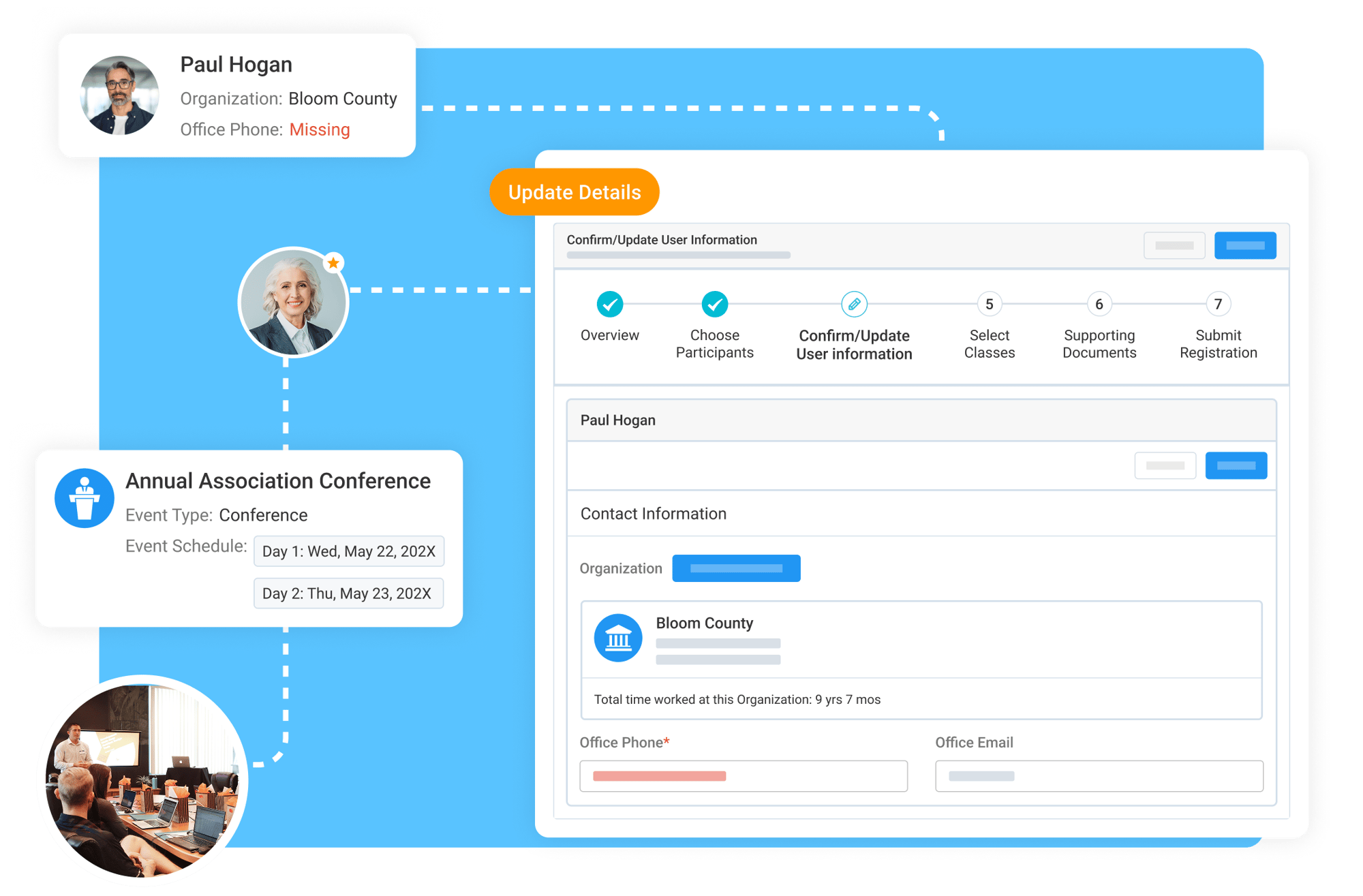
Unlike individual users who can only register themselves, administrative assistants see an additional “Choose Participants” step that allows them to select one or many participants. This supports efficient bulk registration while constraining their view to their own organization.
Update Participant Information & Specify Each Person's Registration Selections
During registration, MOLs can also update participant records such as correcting a preferred name or completing new required custom fields. This reduces post-registration data cleanup and helps keep the member database current.
In the same flow, MOLs can choose bundles, sessions, and classes for each participant. The system prevents duplicate selections (e.g., avoiding double registration of someone in both a bundle and its underlying session) and dynamically displays questions based on participant type (e.g., board chair vs. member).
Enable Group Registration with Simple Permissions
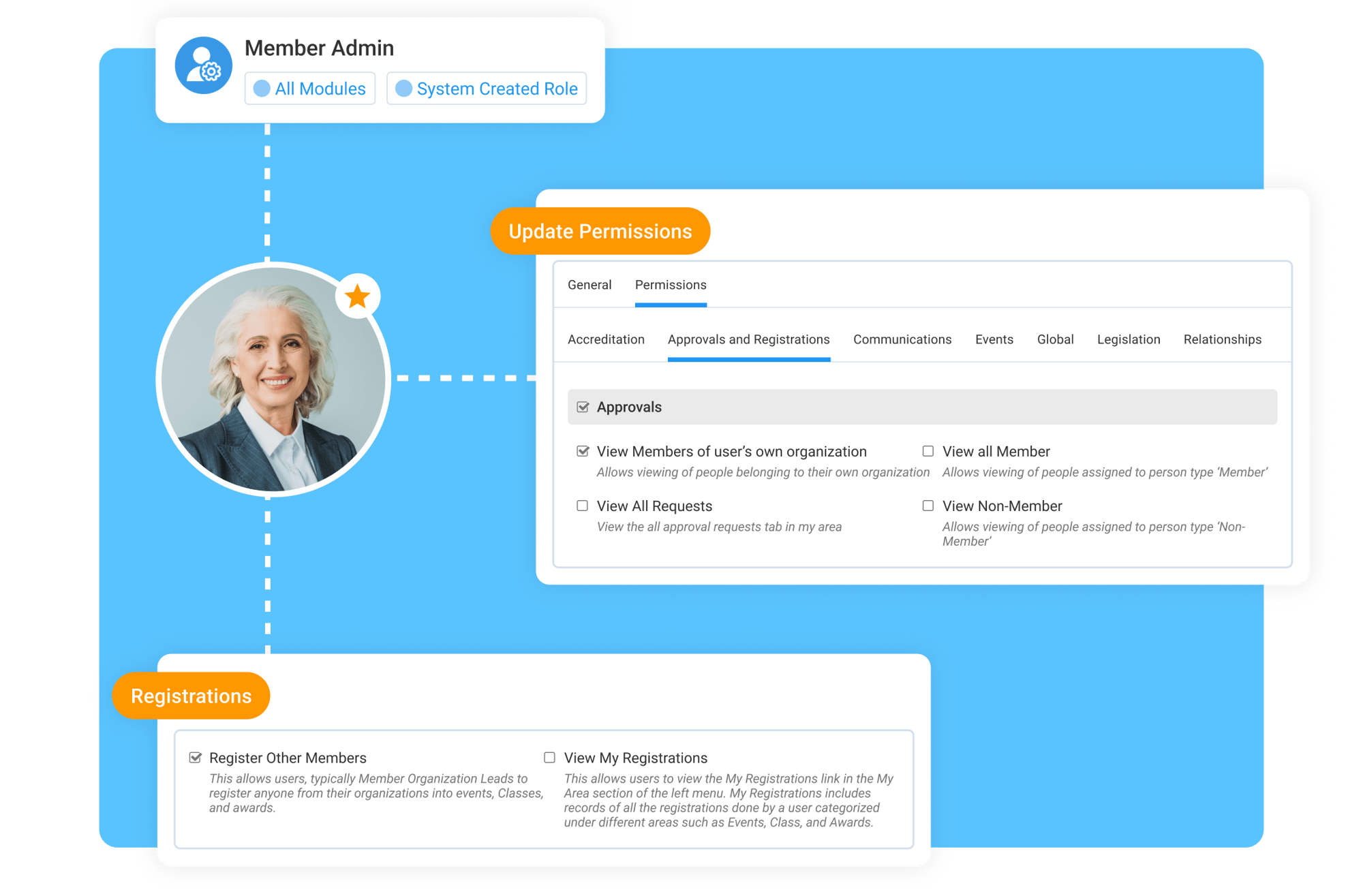
To activate this workflow, administrators only need to grant a few specific permissions to the appropriate user roles:
Member Admin > Permissions:
- Under Approvals > View members of user's own organization
- Under Registrations > Register other members